


Your Subscription, Your Way
Simply select "Subscribe & Save" when adding a product to your cart and choose how often you want to receive the product.
-

Built-in Discount.
Receive 15% off every AutoShip order.
-

On Your Schedule.
Choose the order frequency that works for you.
-

You're in Charge.
It's easy to pause, change, or cancel any time.


-
-
 ⭐ Highly Rated
 -
-
 New Name
 -
 Best Seller
 -
 Best Seller
 -
 Best Seller
 -
-
 Best Seller
 -




-
 15% Off
Chyavanprash
Rejuvenating Ayurvedic herbal jam traditionally used to support a healthy immune system*
Sale price $23.80 Regular price$27.99 -
15% Off
Mint Daily Swish™
Cool and refreshing pulling oil for clean, healthy teeth and gums
Sale price $16.15 Regular price$18.99 -
 15% Off
Healthy Hair™ tablets
Supports a thick and healthy head of hair from the inside out*
Sale price $23.80 Regular price$27.99 -
 15% Off
 -
 15% Off
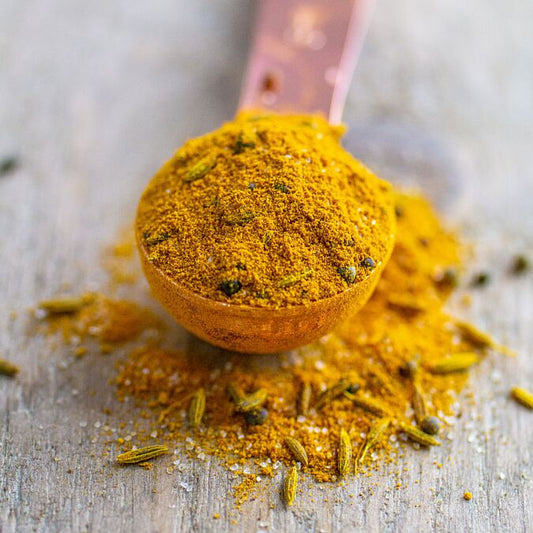
Kitchari Spice Mix
Flavorful Ayurvedic spice blend perfect for kitchari, soups, and more
Sale price $12.75 Regular price$14.99 -
 15% Off
Ashwagandha tablets
Nourishing herbal adaptogen for supporting balanced energy, sound sleep, and a calm mind*
Sale price $21.25 Regular price$24.99 -
 15% Off
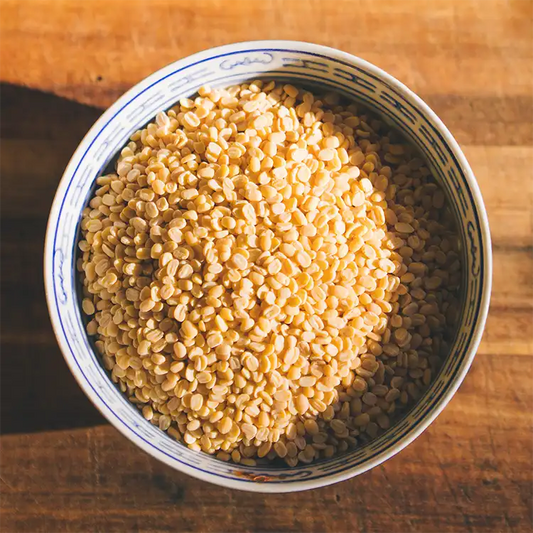
Yellow Mung Dal
Protein-rich Ayurvedic staple commonly used to make kitchari
Sale price $21.25 Regular price$24.99 -
 15% Off
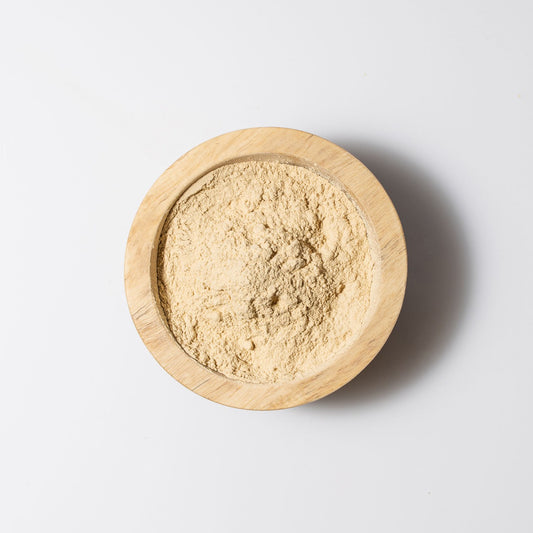
Triphala Powder
Traditional Ayurvedic blend to support digestion, elimination, and a healthy gut microbiome*
Sale price $11.05 Regular price$12.99 -
 15% Off
Vata Massage Oil
Calming and nourishing herbal massage oil for balancing vata dosha
Sale price $23.80 Regular price$27.99  View FAQs
-
 15% Off
Healthy Hair Oil
Luxurious deep treatment herbal oil for hydrated, lustrous, and beautiful hair
Sale price $25.50 Regular price$29.99 -
 15% Off
Beauty Balm
Rich and luxurious botanical balm for soft and supple skin
Sale price $22.10 Regular price$25.99 -
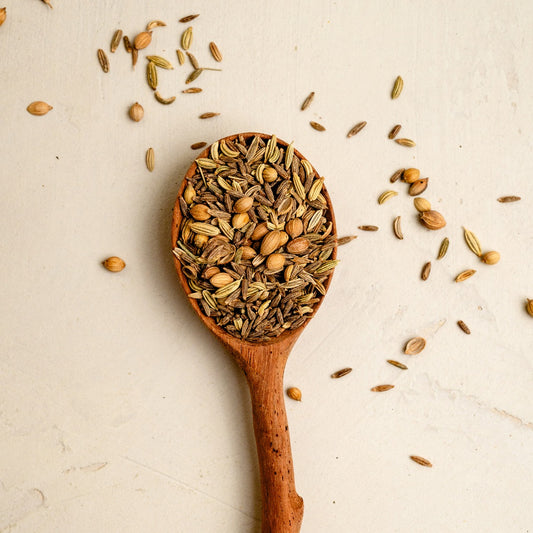
CCF Tea (Cumin, Coriander, Fennel)
Traditional digestive tea of cumin, coriander, and fennel
Sale price $18.70 Regular price$21.99 -
 15% Off
Mahanarayan Oil
Rich and comforting herbal oil for the joints and muscles
Sale price $25.50 Regular price$29.99 -
 15% Off
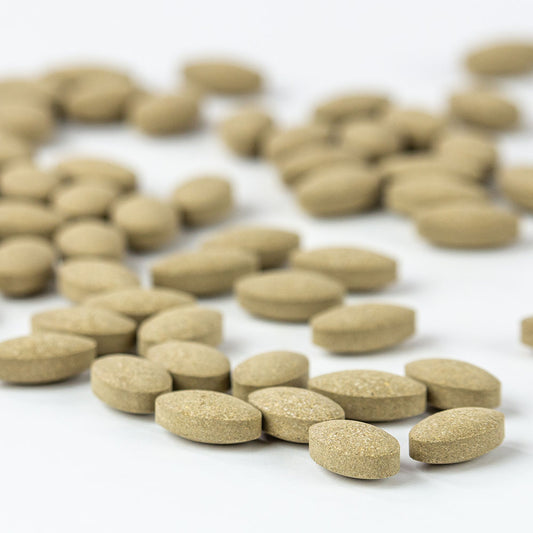
Triphala tablets
Traditional Ayurvedic blend to support digestion, elimination, and a healthy gut microbiome*
Sale price $19.55 Regular price$22.99 -
 15% Off
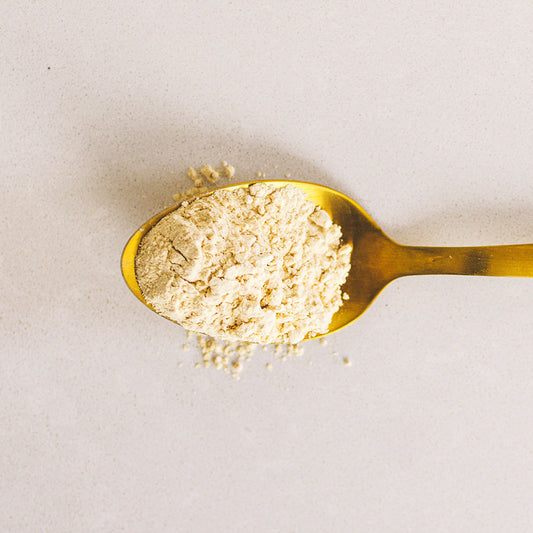
Ashwagandha powder
Nourishing herbal adaptogen for supporting balanced energy, sound sleep, and a calm mind*
Sale price $13.60 Regular price$15.99 -
 15% Off
Daily Massage Oil
Soothing and balancing herbal massage oil for all body types
Sale price $25.50 Regular price$29.99 -
 15% Off
I Sleep Soundly™ tablets
Calming and relaxing herbs to support healthy, restful sleep*
Sale price $23.80 Regular price$27.99 -
 15% Off
Sesame Oil
Traditional Ayurvedic oil that is pure, unrefined, and cold pressed
Sale price $11.90 Regular price$13.99 -
15% Off
Mental Clarity™ tablets
Nootropic herbs to support mental performance and healthy cognitive function*
Sale price $23.80 Regular price$27.99 -
15% Off
Joint Support™ tablets
Rejuvenating herbs to support healthy function of the joints and muscles*
Sale price $23.80 Regular price$27.99 -
 15% Off
Trim Support™ tablets
Gently detoxifying formula to support healthy weight management*
Sale price $23.80 Regular price$27.99 -
 15% Off
Triphala Guggulu tablets
Traditional Ayurvedic formula for detoxification and healthy weight management*
Sale price $30.60 Regular price$35.99 -
 15% Off
Neem & Aloe Soap
Handmade Ayurvedic soap to calm, cool, and soothe the skin
Sale price $9.35 Regular price$10.99 -
15% Off
Menopause Balance tablets
Formerly Women's Natural Transition: Soothes occasional hot flashes, improves sleep quality, and supports concentration*
Sale price $23.80 Regular price$27.99 -
 15% Off
Healthy Skin™ tablets
Cleansing herbs to support smooth and radiant skin from within*
Sale price $23.80 Regular price$27.99 -
 15% Off
Healthy Vata™ tablets
Rejuvenating blend of herbs carefully formulated to balance vata dosha*
Sale price $23.80 Regular price$27.99 -
 15% Off
Sleep Easy Oil™
Soothing herbal massage oil to promote relaxation and deep, restful sleep
Sale price $25.50 Regular price$29.99 -
 15% Off
Cinnamon Daily Swish™
Zesty and refreshing oil pulling for clean, healthy teeth and gums
Sale price $16.15 Regular price$18.99 -
 15% Off
Healthy Pitta™ tablets
Soothing blend of herbs carefully formulated to balance pitta dosha*
Sale price $23.80 Regular price$27.99 -
 15% Off
Tranquil Mind™ tablets
Supports occasional anxiousness and promotes a sense of calm, clarity, and well-being*
Sale price $24.65 Regular price$28.99 -
15% Off
Stress Ease™ tablets
Rejuvenating adaptogen blend that helps the body cope with stress and fatigue*
Sale price $23.80 Regular price$27.99 -
 15% Off
Liver Formula™ tablets
Packed with bitter, cleansing herbs that support healthy liver function*
Sale price $23.80 Regular price$27.99 -
 15% Off
Shilajit tablets
Sustainably sourced, rejuvenating mineral resin with fulvic acid and 80+ trace minerals*
Sale price $30.60 Regular price$35.99 -
 15% Off
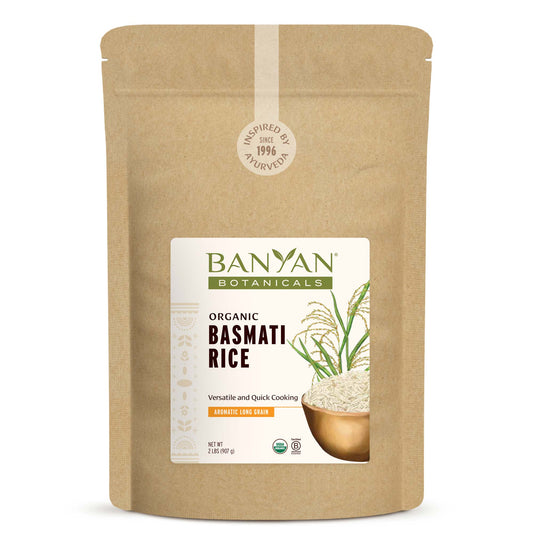
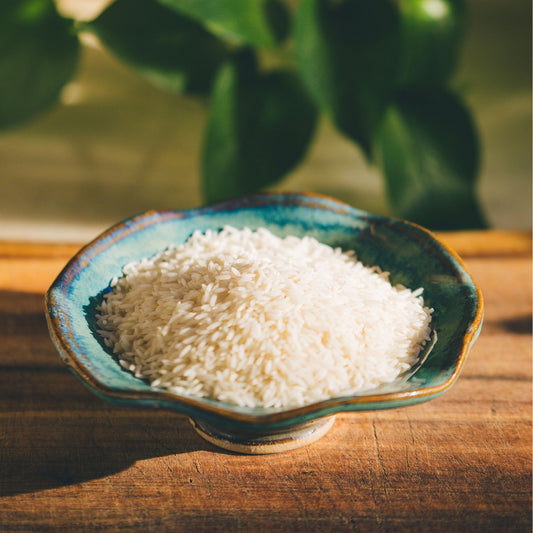
Basmati Rice
Versatile and quick-cooking long grain rice with a delicious flavor and aroma
Sale price $19.55 Regular price$22.99 -
 15% Off
Shatavari powder
Adaptogen traditionally used to support all facets of a healthy female reproductive system*
Sale price $15.30 Regular price$17.99 -
 15% Off
Joint Balm
Soothing and penetrating herbal balm to support healthy, comfortable joints
Sale price $22.10 Regular price$25.99 -
 15% Off
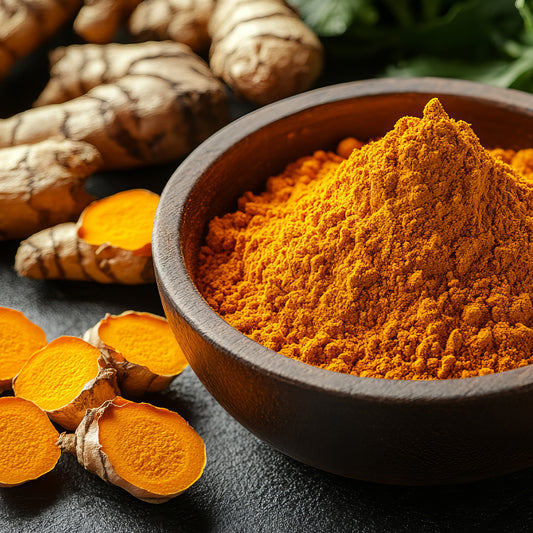
Turmeric powder
Supports a healthy inflammatory response and overall health and well-being*
Sale price $8.50 Regular price$9.99 -
 15% Off
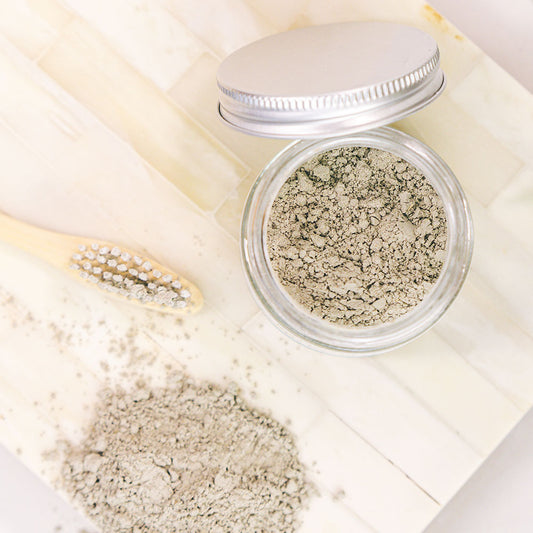
Mint Tooth Powder
A blend of botanicals, minerals, and a refreshing mint-cardamom flavor for a clean mouth
Sale price $15.30 Regular price$17.99 -
 15% Off
Immune Strong™ tablets
Dynamic blend that supports natural defenses and offers fast-acting support*
Sale price $23.80 Regular price$27.99 -
 15% Off
Castor Oil
Ultra rich and versatile oil that supports natural beauty
Sale price $14.45 Regular price$16.99 -
 15% Off
Kapha Digest™ (Trikatu) tablets
Traditional digestive blend with pippali, ginger, and black pepper*
Sale price $23.80 Regular price$27.99 -
 15% Off
Healthy Bones™ tablets
Ethically sourced, bioavailable coral calcium and herbs that support bone health*
Sale price $23.80 Regular price$27.99 -
 15% Off
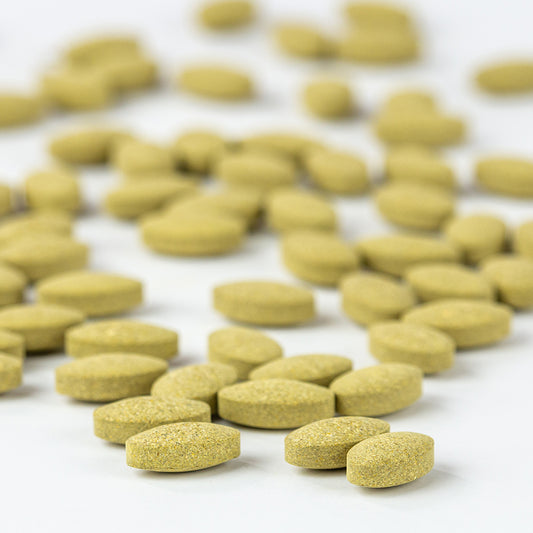
Turmeric tablets
Supports a healthy inflammatory response and overall health and well-being*
Sale price $21.25 Regular price$24.99 -
 15% Off
Super Nasya Oil
Herbal nasal drops with rose and sandalwood to support the sinuses and clear the mind
Sale price $18.70 Regular price$21.99 -
 15% Off
Kapha Massage Oil
Warming and invigorating herbal oil for balancing kapha dosha
Sale price $23.80 Regular price$27.99 -
 15% Off
Vata Digest™ tablets
Warm and balancing blend traditionally used to support healthy digestion*
Sale price $24.65 Regular price$28.99 -
 15% Off
Blood Cleanse™ tablets
Cooling and detoxifying herbs to support healthy blood and skin*
Sale price $23.80 Regular price$27.99 -
15% Off
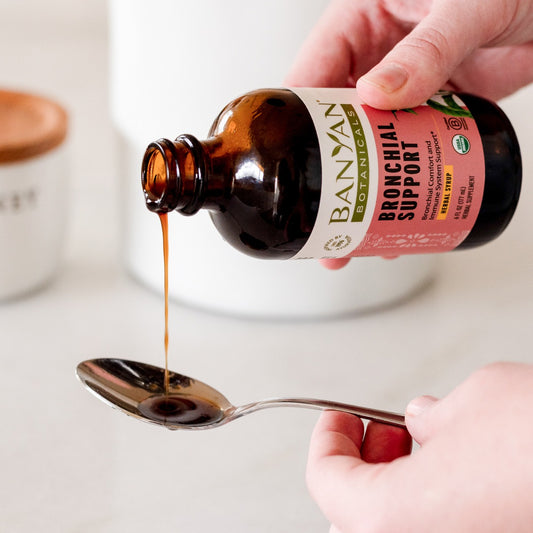
Bronchial Support herbal syrup
Soothing and comforting herbal blend to support a healthy respiratory system*
Sale price $21.25 Regular price$24.99





































































Compare products
Collection comparison


